Showing posts with label vocabulary. Show all posts

Wednesday, January 7, 2015

Vocabulary

We explored technology to support vocabulary acquisition during the months of November and December.  One of the first tools we examined was the vocabulary word table that accompanies each month's curricular lesson.

This graphic can be completed individually on paper or as a whole/small group when projected on the SMARTBoard.  Each vocab word would get it's own graphic, ideally on it's own Notebook page. This technique is based on Robert Marzano's six step process for teaching academic vocabulary.


Next, we explored ways to leverage the technology present in our rooms already and which we are continuing to develop our skills.  Each PLC group was challenged to develop a vocabulary lesson that was both meaningful to their classes and made use of the following tools:

Snipping Tool

SMART Notebook


Symbolstix


A number of teachers and PLC teams created excellent examples of vocabulary activities that are available to view and use from the Village School Workspaces site on Interfaces. 

Monday, December 1, 2014

The 2014-2015 School Year: A Focus on Literacy and Technology in Specialized Settings


Like many other school systems across the state and country, our district invests heavily in technology to support teaching and learning.  We have the added responsibility to ensure that all students, regardless of ability or disability, can benefit from this technology in ways that are meaningful.

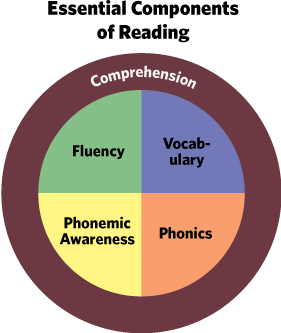
This school year, rareApps will take a deeper look at literacy and technology in specialized settings. Rather than report solely on the features of different apps and technology, our focus will be on examining the five components of reading instruction and investigating technology tools that can leverage research based strategies for instruction as well as support/provide accessibility features so that all students can take advantage of every type of lesson.

November and December: Vocabulary

January: Phonemic/Phonological Awareness

February and March: Phonics

April and May: Comprehension

June: Fluency


Wednesday, May 1, 2013

Scan to Pictures

 by R. J. Cooper and Associates, Inc.

For years at our school, we've been fortunate to have access to many of R. J. Cooper's specially designed software titles, tailored to the individualized needs of our students.  If you haven't checked out their expansion into the world of apps yet, well then you're in for a treat! It may be the first time you come across such an accessible app.

Scanning is a computer user's input alternative to using a mouse or, in the case of the iPad, direct selecting with an index finger tap.  Choices or icons are scanned one at a time, often with an auditory cue, and when the intended selection is highlighted, a switch activates the selection.  The switch is positioned at a spot on the users body that can be consistently targeted.  There are a variety of scanning types: one-switch, two-switch, auditory scan, scan groups, to name several of the common types.  This type of input is useful for individuals who have physical limitations.  While the app is designed for switch input (sold separately), Scan to Pictures does allow interaction anywhere on the iPad screen to serve as an activation. 

Scan to Pictures has a pre-made activities that you can try, but the power in the app comes from the customizable features.  Word picture, label, and consequent can all be customized.  Furthermore, selections can be presented as just a picture, just text, or text and picture together.  Auditory scan can be enabled or disabled.  Creating a custom scanning activity is relatively simple, though the design interface is a little confusing.  Once you learn where everything is located (you record the label name in a different spot than where you type the name, etc.), creating an activity can take less than ten minutes.


R. J. Cooper markets Scan to Pictures as an AAC training program.  It can be incorporated into lessons as a way to develop the vocabulary of learners with special learning and access needs.  This isn't an activity that you'd set a student up with and then walk away, though.  While it does provide a learner with a way to express an idea, the student still needs a communication partner to receive that idea.

There are two versions: paid ($4.99) and lite (free).


 https://itunes.apple.com/us/app/scan-to-pictures/id511891960?mt=8

Be sure to check out the whole lineup of R. J. Cooper iOS apps: https://itunes.apple.com/us/artist/rj-cooper-associates-inc./id412790299

Wednesday, April 10, 2013

Bitsboard

by GrasshopperApps.com

 
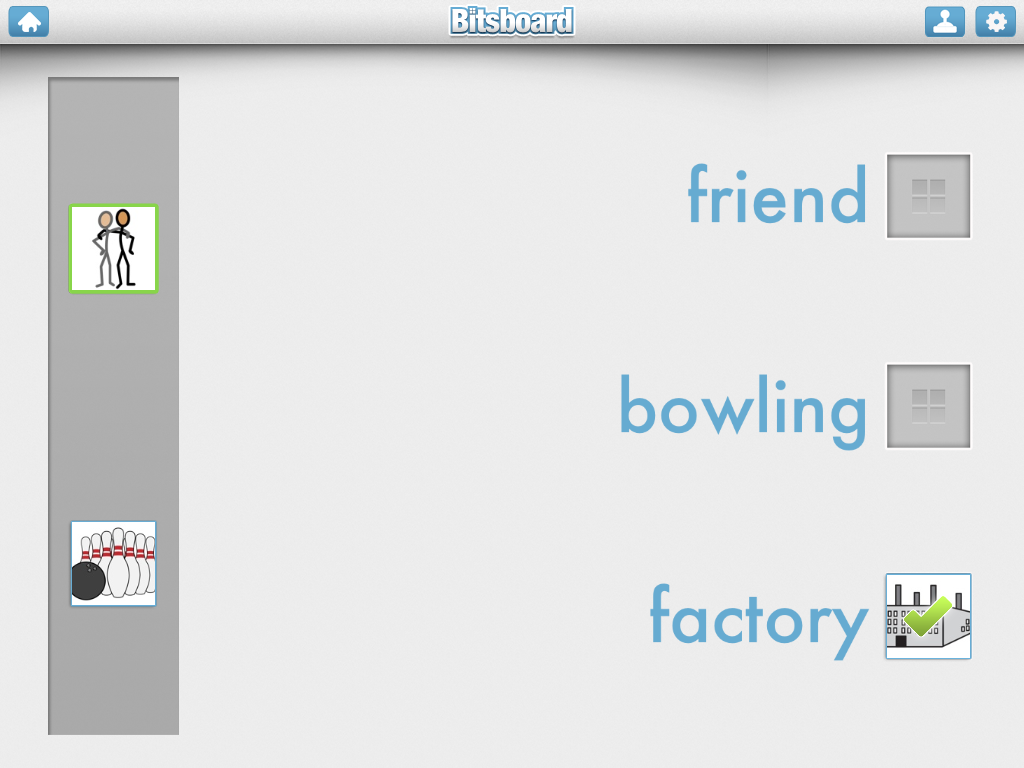
Bitsboard is the April App of the month.  This flashcard type app makes it easy to prepare several different kinds of study activities that make use of text, pictures, sound, and kinesthetics.  Pictures are imported into the app easily through the iPad's camera roll or camera.  The audio recording feature picks up sounds clearly so recorded speech sounds great when played back in the activities.
Once the images are imported the types of activities available on Bitsboard are:
  • Flashcards - review each image one at a time. 
  • Photo Touch - hear a word and touch the right picture
  • True or False - see a picture and a word and decide 'Check' if they match or 'X' if they don't
  • Match Up - drag multiple pictures to their matching words
  • Pop Quiz - see a picture and hear it's label and then select the text from multiple choices
  • Reader - see the text and choose the correct picture.  Use the speaker icon for an audio clue
  • Word Builder - drag scrambled letters to the bottom of the page to correctly spell a word
  • Spelling Bee - see and hear word then use the keyboard to spell the word


While importing pictures that are already on the camera roll is quite easy, it would be nice if the app could access files on Dropbox.  This would make getting curriculum material from one's computer into the app much quicker.  Currently, there does not appear to be a way to access Dropbox web folders.
 
Bitsboard can be a fun and motivating way to practice vocabulary and spelling.  This app is rated a must-have for classrooms with readers and emerging readers alike.


Wednesday, January 2, 2013

Article Summary: Apps and Reading

Educational Apps Alone Won’t Teach Your Kid to Read

By Lisa Guernsey and Michael Levine published on Slate.com, December 13, 2012
Educational Apps Alone Won't Teach Your Kid to Read

This is a fantastic article that clearly reports on the current state of educational apps related to reading. The following is a brief summary of the article.
There exist thousands of apps on the marketplace, many claiming to teach children how to read.  Guernsey and Levine found that most apps teach the most basic reading skills of letter identification and letter/sound relationships.  Presently, neither app nor ebook has harnessed the affordances of iPads and tablets to teach higher level skills of vocabulary and comprehension, which are critical components of reading for purpose.
·         Most top-selling reading apps teach the basics: alphabet identification and phonics

·         Most apps don’t address higher-level skills like vocabulary and comprehension – critical components for becoming a fluent reader

·         Many ebooks are currently designed to be watched, rather than read

·         Ebooks could leverage the interactivity of the tablet, but for the most part developers aren’t designing stories to address comprehension and vocabulary

·         The authors imagine a good ebook as one that asks questions that leads to interaction with the screen – combined with interaction with the parent or teacher

·         80% of top-selling paid education apps are marketed for children, many claiming to help children learn to read

·         Apps often do not provide information about how and if they accomplish their stated goals

“At its best, the technology complements the work of trained teachers and parents.  It doesn’t replace it.”
-Guernsey and Levine