Monday, March 30, 2015

Comprehension

The whole point of teaching children to read is so that they can independently understand text, whether it's a story, a menu, or a schedule.  Practice with phonics, fluency, and decoding are done to build a foundation from which comprehending text can be built.

For some students, however, barriers exist that prevent them from reading and understanding printed text.  Examples include low vision and blindness, learning disabilities, and physical disabilities.  For students who are affected by any of these, electronic texts of literature and text books are available to use with popular text-to-speech software on computers and tablets.

Two services that make e-text available to students with the above disabilities are Learning Ally and Bookshare. Both services have freely available software for reading text aloud on a computer.  In order to use the service on an iPad, specific apps are needed.  Learning Ally has developed it's own app (called Learning Ally Audio), while Bookshare works with different apps, most notably Read2Go and Voice Dream Reader.


Thursday, February 12, 2015

Phonics

This is a review of apps related to phonics instruction.  The apps selected here were chosen based on their ability to complement a teacher-student lesson, not merely to act as a computer tutor (with the exception of Lexia). Furthermore, these apps can augment a multisensory approach to mastering phonics.

Lexia - Free app, subscription needed to complete activities.


Lexia now offers iOS versions of the computer software that we currently subscribe to.  You must log in as a teacher first then you will be able to have your students log-in using their usernames and passwords.  Parents - discuss with your child's teacher to see if this is a resource that can be used on your home iPad.
 
Strategies:
 
Core 5:
 
myLexia (for teachers to monitor student progress):


ABC Spelling Magic - Free to download, $0.99 for Deluxe


Spelling Magic produces excellent letter sounds, far superior to the other apps listed on this page.  For example, the b and p are pure /b/ and /p/ sounds, and the r sounds like /r/, not /err/.

There are two modes of play: letter cards and 'movable alphabet'. You can choose which group of cvc words you want to work on based on vowel, or choose to practice them all.

https://itunes.apple.com/us/app/abc-spelling-magic/id429301553?mt=8


First Words Deluxe - $4.99

Similar to Spelling Magic, First Words uses letter tiles to allow users to build words.  You can't focus on a particular letter or sound, rather you choose a category to work with: animals, home, vehicles, or other.

https://itunes.apple.com/us/app/first-words-deluxe/id337462979?mt=8


Alpha Writer - $4.99
                                                  
Another word building app, Alpha Writer differentiates itself by using tiles for entire phonograms: /ar/, /sh/, /oo/, etc., in addition to single letter tiles. It also supports 'free play' so you can build any decodable word (real or nonsense) with a student, like a talking slate.


Letter School - $4.99

This app is promoted as a handwriting activity, but I think it's a great way to practice phonics with a multisensory approach.  It also has three options for letter style, including Handwriting Without Tears

https://itunes.apple.com/us/app/letterschool-learn-to-write/id435476174?mt=8


SMART Board Exchange

SMART Exchange also has hundreds of phonics activities. Here are some examples that were shared during the workshop:


Phonics Read CVC
http://exchange.smarttech.com/details.html?id=10ad45ee-4826-4cad-b6cd-8d7cb08178ab


Middle Sound Sort


http://exchange.smarttech.com/details?id=b3f13ef9-a6b8-498a-872a-34fbc0e41b56


Friday, January 23, 2015

Phonological Awareness

Software and apps exist that support the development of phonological and phonemic awareness (PA).  Often times, these two terms are used interchangeably and they essentially mean the same thing: the recognition and manipulation of sound parts that make up words.  Phonological deals with units of sound at the level of syllables, blends, and digraphs while phonemic implies segmenting syllables into the smallest unit of sounds, the phonemes: /sh/ /i/ /p/.  A more thorough explanation can be found here.

The age at which typically developing children can do different PA skills is described on this Reading Rockets page regarding PA. As you can see from the table below, between the ages of 4 and 6, children are able to rhyme words, recognize alliteration, count syllables, and recognize/match initial sounds of words.  Manipulating phonemes within a word is a skill that develops until age 9, so PA instruction for typically developing students can continue well into third grade

This table describes the what PA skills children can do at ages 4, 5, and 5 and a half.

Here is a list of software and apps that were shared during January's workshop:

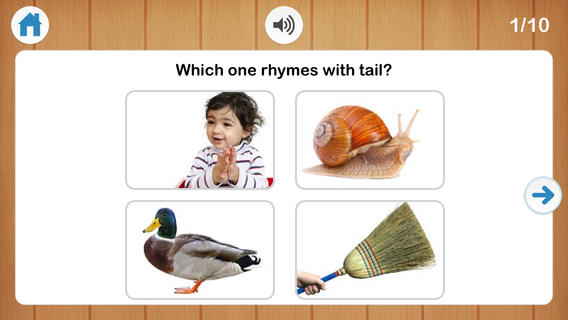
Rhyming from I Can Do Apps, $2.99
https://itunes.apple.com/us/app/rhyming-from-i-can-do-apps/id548874184?mt=8

The text can be removed to make it a true PA experience.  Two to four pictures can be displayed at a time.


SoundMatch from EdNinja, $1.99
https://itunes.apple.com/us/app/soundmatch-by-edninja/id596606125?mt=8

This is similar to a Memory type of game that uses sounds and pictures.  In fact, the pictures can be hidden so that the child has to make matches based on sound only.

Beginning Sounds from Lakeshore, $5.19
http://www.lakeshorelearning.com/product/productDet.jsp?productItemID=1%2C689%2C949%2C371%2C923%2C658&ASSORTMENT%3C%3East_id=1408474395181113&bmUID=1422038980086

Using picture tokens, students can sort and match beginning sounds of words on the SMART Board. This activity has also been made into an iOS app:

https://itunes.apple.com/us/app/beginning-sounds-interactive/id465479183?mt=8&ign-mpt=uo%3D4

Additionally, we discussed how these types of activities can easily be created on SMART Notebook using teacher selected vocabulary.

Wednesday, January 7, 2015

Vocabulary

We explored technology to support vocabulary acquisition during the months of November and December.  One of the first tools we examined was the vocabulary word table that accompanies each month's curricular lesson.

This graphic can be completed individually on paper or as a whole/small group when projected on the SMARTBoard.  Each vocab word would get it's own graphic, ideally on it's own Notebook page. This technique is based on Robert Marzano's six step process for teaching academic vocabulary.


Next, we explored ways to leverage the technology present in our rooms already and which we are continuing to develop our skills.  Each PLC group was challenged to develop a vocabulary lesson that was both meaningful to their classes and made use of the following tools:

Snipping Tool

SMART Notebook


Symbolstix


A number of teachers and PLC teams created excellent examples of vocabulary activities that are available to view and use from the Village School Workspaces site on Interfaces. 

Monday, December 1, 2014

The 2014-2015 School Year: A Focus on Literacy and Technology in Specialized Settings


Like many other school systems across the state and country, our district invests heavily in technology to support teaching and learning.  We have the added responsibility to ensure that all students, regardless of ability or disability, can benefit from this technology in ways that are meaningful.

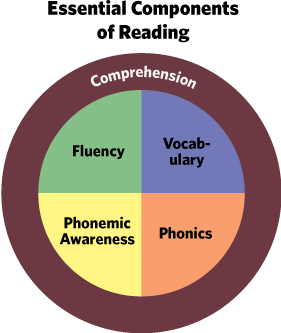
This school year, rareApps will take a deeper look at literacy and technology in specialized settings. Rather than report solely on the features of different apps and technology, our focus will be on examining the five components of reading instruction and investigating technology tools that can leverage research based strategies for instruction as well as support/provide accessibility features so that all students can take advantage of every type of lesson.

November and December: Vocabulary

January: Phonemic/Phonological Awareness

February and March: Phonics

April and May: Comprehension

June: Fluency


Wednesday, June 5, 2013

Tapestry: Beautiful Storytelling

by Betaworks Bolsena
UPDATE: As of the end of 2014, the app has evolved into a medium for advertisers.  I don't think user generated content is possible any longer.

Original Post:

The app, Tapestry, allows a user to read community-generated multimodal text.  Using the website on the computer permits the user to easily compose a story.  What makes it different from reading (or writing) an eBook or blog, however, is that the author has total control over the size and position of the text.  More importantly though, the author controls when each word or phrase is revealed.  The pacing of the narrative is therefore shared between the author and the reader.  While the reader advances the story by tapping anywhere on the screen, the author has determined where and when words and phrases will appear on the screen.

Check out this example: https://readtapestry.com/s/zsSwRYknz/

Using this app and website as an authoring tool for children to use to publish and share their own work is an area of particular promise for using Tapestry.

Currently, there appears to be no audio component to this app and the experience more closely resembles reading a story rather than interacting with an app.  This seems to be an intentional design choice by the app developers and in my opinion is executed well.

I did try a test with the iOS VoiceOver accessibility feature and unfortunately, this app isn't currently VoiceOver friendly.  While the text on the screen can be accessed by the screen reader, VoiceOver first reads the image label - which is an incomprehensible sequence of letters and numbers. It seems that this could be an easy fix and potentially open the app up to users with vision and learning disabilities.

Currently the content available to read is sparse, particularly stories that would be of interest to school-aged children. However, users are uploading stories daily.  Businesses are also creating their own narratives - quasi story/commercials which are a pleasant alternative to banner ads.


Wednesday, May 1, 2013

Scan to Pictures

 by R. J. Cooper and Associates, Inc.

For years at our school, we've been fortunate to have access to many of R. J. Cooper's specially designed software titles, tailored to the individualized needs of our students.  If you haven't checked out their expansion into the world of apps yet, well then you're in for a treat! It may be the first time you come across such an accessible app.

Scanning is a computer user's input alternative to using a mouse or, in the case of the iPad, direct selecting with an index finger tap.  Choices or icons are scanned one at a time, often with an auditory cue, and when the intended selection is highlighted, a switch activates the selection.  The switch is positioned at a spot on the users body that can be consistently targeted.  There are a variety of scanning types: one-switch, two-switch, auditory scan, scan groups, to name several of the common types.  This type of input is useful for individuals who have physical limitations.  While the app is designed for switch input (sold separately), Scan to Pictures does allow interaction anywhere on the iPad screen to serve as an activation. 

Scan to Pictures has a pre-made activities that you can try, but the power in the app comes from the customizable features.  Word picture, label, and consequent can all be customized.  Furthermore, selections can be presented as just a picture, just text, or text and picture together.  Auditory scan can be enabled or disabled.  Creating a custom scanning activity is relatively simple, though the design interface is a little confusing.  Once you learn where everything is located (you record the label name in a different spot than where you type the name, etc.), creating an activity can take less than ten minutes.


R. J. Cooper markets Scan to Pictures as an AAC training program.  It can be incorporated into lessons as a way to develop the vocabulary of learners with special learning and access needs.  This isn't an activity that you'd set a student up with and then walk away, though.  While it does provide a learner with a way to express an idea, the student still needs a communication partner to receive that idea.

There are two versions: paid ($4.99) and lite (free).


 https://itunes.apple.com/us/app/scan-to-pictures/id511891960?mt=8

Be sure to check out the whole lineup of R. J. Cooper iOS apps: https://itunes.apple.com/us/artist/rj-cooper-associates-inc./id412790299

Wednesday, April 10, 2013

Bitsboard

by GrasshopperApps.com

 
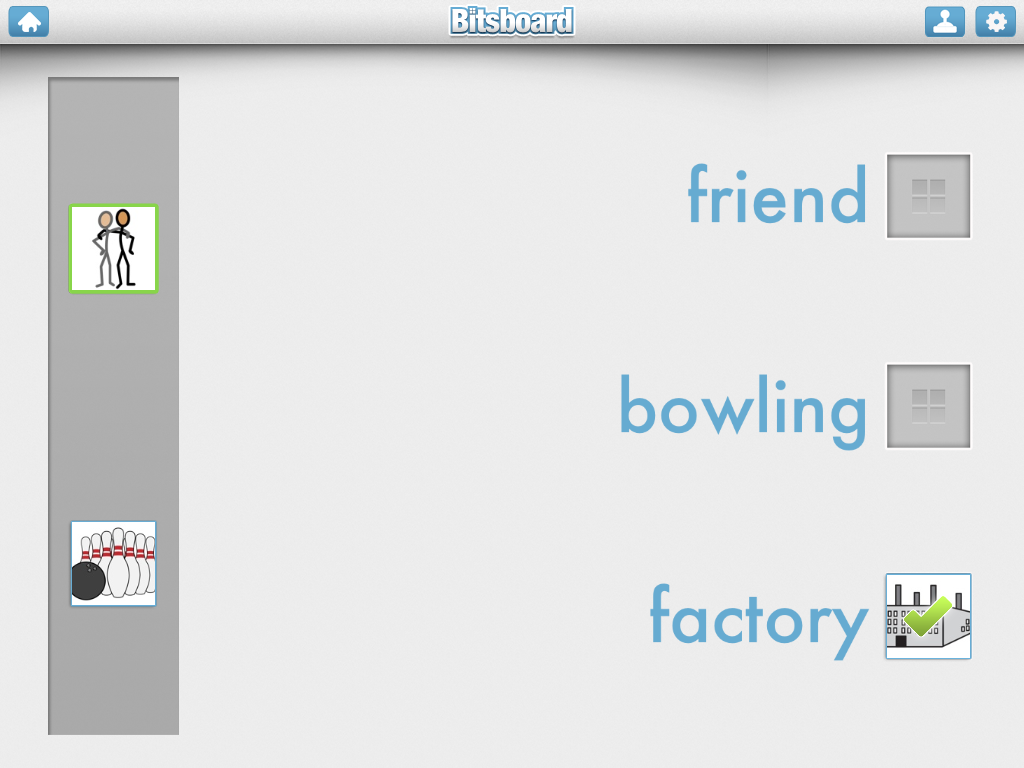
Bitsboard is the April App of the month.  This flashcard type app makes it easy to prepare several different kinds of study activities that make use of text, pictures, sound, and kinesthetics.  Pictures are imported into the app easily through the iPad's camera roll or camera.  The audio recording feature picks up sounds clearly so recorded speech sounds great when played back in the activities.
Once the images are imported the types of activities available on Bitsboard are:
  • Flashcards - review each image one at a time. 
  • Photo Touch - hear a word and touch the right picture
  • True or False - see a picture and a word and decide 'Check' if they match or 'X' if they don't
  • Match Up - drag multiple pictures to their matching words
  • Pop Quiz - see a picture and hear it's label and then select the text from multiple choices
  • Reader - see the text and choose the correct picture.  Use the speaker icon for an audio clue
  • Word Builder - drag scrambled letters to the bottom of the page to correctly spell a word
  • Spelling Bee - see and hear word then use the keyboard to spell the word


While importing pictures that are already on the camera roll is quite easy, it would be nice if the app could access files on Dropbox.  This would make getting curriculum material from one's computer into the app much quicker.  Currently, there does not appear to be a way to access Dropbox web folders.
 
Bitsboard can be a fun and motivating way to practice vocabulary and spelling.  This app is rated a must-have for classrooms with readers and emerging readers alike.


Wednesday, March 6, 2013

Voice Dream

by Voice Dream LLC

The text-to-speech app, Voice Dream, is the March app of the month.  The term text-to-speech means that the computer will read any text on the screen aloud.  This is useful for users who are blind or have low-vision, users who have reading difficulties, and users who are just beginning to read. 

The app connects seamlessly with the Bookshare service, which provides accessible content to qualifing users.  Please see the Bookshare website for more information about the qualifications.  Books downloaded from Bookshare are quickly loaded and prepared to be read aloud.

Teachers will find Voice Dream to be a useful way to provide grade-level content to students who are not yet reading at grade level.  For example, a 5th grader who is still learning to decode and improve fluency will be able to independently engage  with science text written at the fifth grade level.  By using the Dropbox service, teachers can easily provide students with accesible versions of the text.  Voice Dream can read text from the following formats:
  • PDF
  • MS Word and PowerPoint
  • Plain or rich text
  • some ePub (DRM-free)
  • HTML
Additionally, Voice Dream has a built in text editor, so a user can enter any text and have it read aloud.  For example, a student who is working with a hard-copy text book may get stuck with a particular word, phrase, or sentence.  By typing the text into the Voice Dream editor, the student could listen to the text repeatedly, helping comprehension.

The app allows many features to be adjusted such as text and page color, text size, highlighting, and rate of speech. 

Different voices are available for purchase and all of these are available to sample using the Voice Dream Lite version of the app.  The lite version will read the first few lines of text before the text-to-speech is disabled.

In conclusion, Voice Dream is a must-have for classrooms and families looking for a robust text-to-speech app that goes beyond the basic functions of iOS's built in VoiceOver functions. 


Voice Dream by Voice Dream LLC: $9.99

Other Text-to-Speech apps:
Natural Reader by NaturalSoft Limited: Free
Read2GO by Benetech: $19.99         


Wednesday, February 6, 2013

MyScript Calculator

by Vision Objects

MyScript Calculator by Vision Objects converts handwriting into mathmatical symbols and numbers.  A few trials with this app reveals that it does a really good job at recognizing a variety of symbols, even what may be considered sloppy handwriting.  Drawing a line through a symbol or digit that you don't want will remove it right away.
At the heart of this app is its need to balance the equation.  Therefore, anything a user does to the left of the equal sign will be balanced to the right (and vice versa).  When it expects another number, it provides a light gray question mark that the user can write directly over. 
 
This calculator can be used in the classroom in conjuction with counters/manipulatives to demonstrate mathematical concepts.  One student remarked that she liked it because it gave her the answer, but it was evident that her conceptual understanding of how and why multiplication works was increasing.
 
MyScript Calculator can do some pretty advanced mathematics, but I rate it a must-have for the basics that it does: recognizing handwriting and balancing equations.


 not the best video, but I was teaching and filming at the same time! Thanks for understanding.  :)


Wednesday, January 2, 2013

Toontastic

by Launchpad Toys

Toontastic is a wonderful storytelling app that allows kids to become cartoon designers.  The interface is easy to use and developing a story is step-by-step. 

The app uses a library of backgrounds and characters, called toys, that can be put together to create a scene.  A user can also draw unique characters and backgrounds using a built-in image editor.  The scene is then recorded as the user plays with the toys on screen, much like playing with real-life action figures or dolls. 


The app walks a child through the story arc process - introduction of the story and problem, conflict, and resolution.  Of course, it's up to the child to follow these suggestions - my own son was happy to create scene after scene of pirates engaged in battle!  This however presents a perfect teaching opportunity for analysis and comparison to other well-known stories.

Another use of this app is to retell a story to improve comprehension.  Arthur Glenberg and his colleagues have researched ways in which the manipulation of objects that correspond to elements from a story increase comprehension. Toontastic may be a starting point for students who are unable to manipulate physical objects to rehearse a passage that they have read or listened to.  While the app doesn't provide built-in accessibility supports, it does offer a place for educators to begin thinking about ways to foster independent reading comprehension practice.  Could this app be paired with other classroom techniques, such as communication boards and graphic organizers, to provide storytelling capabilities to all students? 

Article Summary: Apps and Reading

Educational Apps Alone Won’t Teach Your Kid to Read

By Lisa Guernsey and Michael Levine published on Slate.com, December 13, 2012
Educational Apps Alone Won't Teach Your Kid to Read

This is a fantastic article that clearly reports on the current state of educational apps related to reading. The following is a brief summary of the article.
There exist thousands of apps on the marketplace, many claiming to teach children how to read.  Guernsey and Levine found that most apps teach the most basic reading skills of letter identification and letter/sound relationships.  Presently, neither app nor ebook has harnessed the affordances of iPads and tablets to teach higher level skills of vocabulary and comprehension, which are critical components of reading for purpose.
·         Most top-selling reading apps teach the basics: alphabet identification and phonics

·         Most apps don’t address higher-level skills like vocabulary and comprehension – critical components for becoming a fluent reader

·         Many ebooks are currently designed to be watched, rather than read

·         Ebooks could leverage the interactivity of the tablet, but for the most part developers aren’t designing stories to address comprehension and vocabulary

·         The authors imagine a good ebook as one that asks questions that leads to interaction with the screen – combined with interaction with the parent or teacher

·         80% of top-selling paid education apps are marketed for children, many claiming to help children learn to read

·         Apps often do not provide information about how and if they accomplish their stated goals

“At its best, the technology complements the work of trained teachers and parents.  It doesn’t replace it.”
-Guernsey and Levine

Wednesday, December 5, 2012

Explain Everything

by MorrisCooke


Explain Everything app icon
Explain Everything is the digital equivalent of scrap paper that you use to quickly sketch a diagram when you're trying to explain an abstract concept.  What your scrap paper can't do, however, is what makes Explain Everything such a powerful tool.  As one reviewer on the AppStore explains, it's like having a mini interactive whiteboard with you during lessons.


This app lets you create or import digital content that can be manipulated, annotated, and explained through a voice recorder.  Explain Everything provides repeated engagement and exposure to any subject or activity.  A variety of tools let the user draw lines, highlight important areas, or type in text. 
 
Here are just a few uses for Explain Everything in the classroom:
  • annotate a map, such as the school floorplan, a bus route, or the setting of a story
  • use it as a slate to practice handwriting while recording the cues for the letter sounds. For example c, cake, /k/
  • self-monitor articulation or reading fluency
  • import a document created elsewhere and verbally summarize it using the annotation tools for emphasis
Explain Everything is a definite must-have for all classrooms, from the youngest learners to the most experienced teachers.  $2.99.
     
2/27/13 
Here's a great comparison between this app and a similar one, Educreations: http://chronicle.com/blogs/profhacker/ipad-screencasting-educreations-and-explain-everything/38662


Wednesday, November 14, 2012

Count to 100

by FuzzyBees

count to 100 app icon
Count to 100 is November's featured app for the iPad Basics workshop.  The title says it all - this app counts to one hundred.

 What makes it worthwhile, however, are the various ways a student can practice counting to 100 (or any multiple of 10 up to 100).  The settings allow for skip-counting by 2s, 5s, 10s, and 25s.  Students can explore the numbers by tapping arbitrarily or follow a forced-sequence. 

Once a number is selected, it is highlighted yellow and a tone plays with a female voice saying the number.  Either of these options can be turned off in the menu.  The developer cleverly designed the home button to activate on two taps, thereby ignoring inadvertent taps by students.  Using the Guided Access accessibility feature of iOS 6 can disable all the option buttons, of course.

Some ideas for using this app in the classroom include:

A scaffolded counting experience for students during lessons to support 1-1 correspondence.  For example, students can put items in a container one at a time and use the app as a counter to augment working memory.

By setting the grid to 30, students can practice counting during calendar activities (except on months with 31 days, of course!).

Students can estimate numbers on the grid with the option of displaying the numbers only when tapped and using the 'tap any' mode.

This app is a must-have for classrooms that have students with early numeracy skills.  While it specializes in one skill, counting, it's many options make it a useful tool in the classroom.

note: some reviews on the AppStore mistakenly claim that the home button doesn't work and that music and speech can't be turned off independent of one another.  After testing this app, I can confirm that the home button does work (requires two taps) and all sounds can be toggled on/off within the home menu.

Wednesday, October 31, 2012

Inspiration Maps

by Inspiration Software, Inc.

Inspiration Maps was the featured app at the October building meeting.  This is the iPad version of the popular desktop concept mapper, Inspiration.

Concept mapping makes use of position and space to convey relationships, connections, and hierarchy.  What makes this app so powerful is the blending of digital features with the portability of a pencil and a notebook.

Our favorite feature is the ability to change a cell shape using the camera function on the iPad.  Now a concrete representation of a real-world concept can be included in a map.  Examples include pictures from a story, real life items that are being categorized, or part to whole relationships for complex items.

We rate Inspiration Maps a must-have for all classrooms.  Critical thinking by students begins with teachers modeling the thinking.

First Then Visual Schedule

by Good Karma Applications, Inc.


First Then was the featured app at the September building meeting. The app provides a way to create custom multi-modal (text, audio, and visual) schedules that are easily referred to throughout the course of the day due to the portability of iDevices.

While First Then was designed as a schedule support, we found other uses for its sequential nature as well:


  • Any task analysis, from recipes and toothbrushing to solving long division
  • Directions to a location (like a pre-programmed GPS!)
  • Student or teacher created audio-books
  • Sentence starters/Answer frame for composing essays
We definitely rate First Then Visual Schedule a must-have for every classroom with iDevices.

Friday, October 26, 2012

Welcome to Rare Apps

The intent of this blog is to collect and share resources for the teachers supported by the Assistive Technology team for our special education schools.  We hope this collection is useful to all visitors to the site and we welcome your comments or questions.

Recommended Apps Reviewed for Education (RARE) are iOS applications that have already received Working List approval for use on iPads in the classroom.  Apps that are selected for inclusion on RARE have been further examined by the team for accurate content, practical application to educational settings, and accessibility.  Rather than being an exhaustive list of all educational apps, RARE seeks to identify the best educational apps.

Stephanie Swan
Assistive Technologist, Speech-Language Pathologist

Eric Carson
Assistive Technologist, Special Education Teacher