Wednesday, April 10, 2013

Bitsboard

by GrasshopperApps.com

 
Bitsboard is the April App of the month.  This flashcard type app makes it easy to prepare several different kinds of study activities that make use of text, pictures, sound, and kinesthetics.  Pictures are imported into the app easily through the iPad's camera roll or camera.  The audio recording feature picks up sounds clearly so recorded speech sounds great when played back in the activities.
Once the images are imported the types of activities available on Bitsboard are:
  • Flashcards - review each image one at a time. 
  • Photo Touch - hear a word and touch the right picture
  • True or False - see a picture and a word and decide 'Check' if they match or 'X' if they don't
  • Match Up - drag multiple pictures to their matching words
  • Pop Quiz - see a picture and hear it's label and then select the text from multiple choices
  • Reader - see the text and choose the correct picture.  Use the speaker icon for an audio clue
  • Word Builder - drag scrambled letters to the bottom of the page to correctly spell a word
  • Spelling Bee - see and hear word then use the keyboard to spell the word
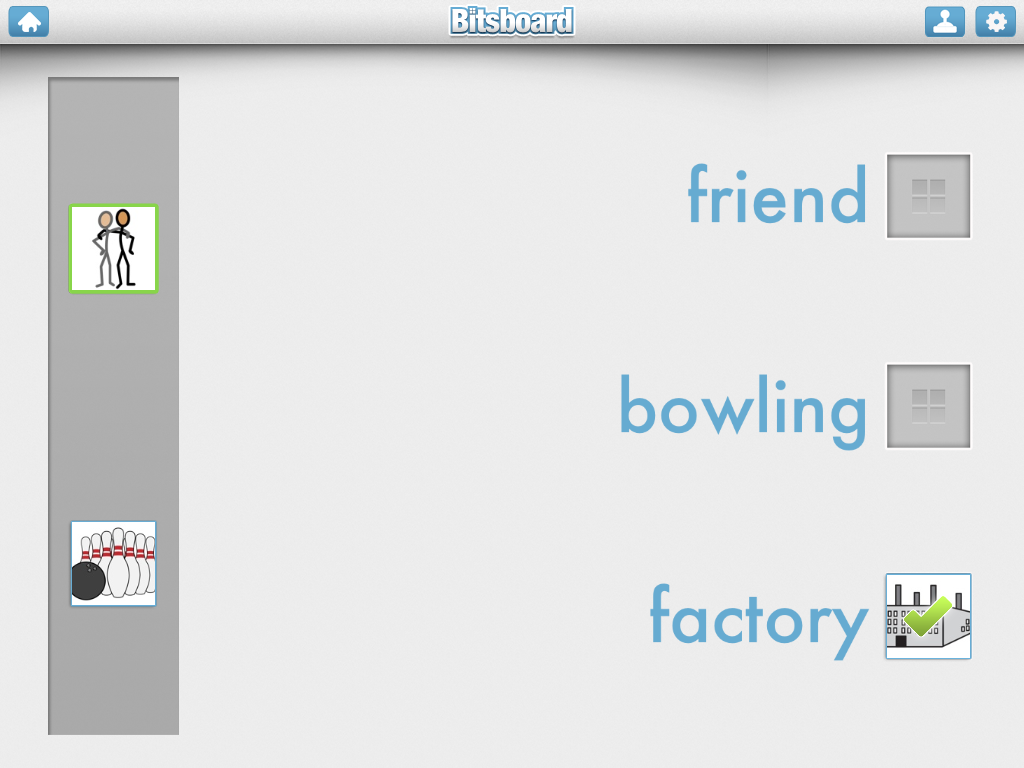


While importing pictures that are already on the camera roll is quite easy, it would be nice if the app could access files on Dropbox.  This would make getting curriculum material from one's computer into the app much quicker.  Currently, there does not appear to be a way to access Dropbox web folders.
 
Bitsboard can be a fun and motivating way to practice vocabulary and spelling.  This app is rated a must-have for classrooms with readers and emerging readers alike.


Wednesday, March 6, 2013

Voice Dream

by Voice Dream LLC

The text-to-speech app, Voice Dream, is the March app of the month.  The term text-to-speech means that the computer will read any text on the screen aloud.  This is useful for users who are blind or have low-vision, users who have reading difficulties, and users who are just beginning to read. 

The app connects seamlessly with the Bookshare service, which provides accessible content to qualifing users.  Please see the Bookshare website for more information about the qualifications.  Books downloaded from Bookshare are quickly loaded and prepared to be read aloud.

Teachers will find Voice Dream to be a useful way to provide grade-level content to students who are not yet reading at grade level.  For example, a 5th grader who is still learning to decode and improve fluency will be able to independently engage  with science text written at the fifth grade level.  By using the Dropbox service, teachers can easily provide students with accesible versions of the text.  Voice Dream can read text from the following formats:
  • PDF
  • MS Word and PowerPoint
  • Plain or rich text
  • some ePub (DRM-free)
  • HTML
Additionally, Voice Dream has a built in text editor, so a user can enter any text and have it read aloud.  For example, a student who is working with a hard-copy text book may get stuck with a particular word, phrase, or sentence.  By typing the text into the Voice Dream editor, the student could listen to the text repeatedly, helping comprehension.

The app allows many features to be adjusted such as text and page color, text size, highlighting, and rate of speech. 

Different voices are available for purchase and all of these are available to sample using the Voice Dream Lite version of the app.  The lite version will read the first few lines of text before the text-to-speech is disabled.

In conclusion, Voice Dream is a must-have for classrooms and families looking for a robust text-to-speech app that goes beyond the basic functions of iOS's built in VoiceOver functions. 


Voice Dream by Voice Dream LLC: $9.99

Other Text-to-Speech apps:
Natural Reader by NaturalSoft Limited: Free
Read2GO by Benetech: $19.99         


Wednesday, February 6, 2013

MyScript Calculator

by Vision Objects

MyScript Calculator by Vision Objects converts handwriting into mathmatical symbols and numbers.  A few trials with this app reveals that it does a really good job at recognizing a variety of symbols, even what may be considered sloppy handwriting.  Drawing a line through a symbol or digit that you don't want will remove it right away.
At the heart of this app is its need to balance the equation.  Therefore, anything a user does to the left of the equal sign will be balanced to the right (and vice versa).  When it expects another number, it provides a light gray question mark that the user can write directly over. 
 
This calculator can be used in the classroom in conjuction with counters/manipulatives to demonstrate mathematical concepts.  One student remarked that she liked it because it gave her the answer, but it was evident that her conceptual understanding of how and why multiplication works was increasing.
 
MyScript Calculator can do some pretty advanced mathematics, but I rate it a must-have for the basics that it does: recognizing handwriting and balancing equations.


 not the best video, but I was teaching and filming at the same time! Thanks for understanding.  :)


Wednesday, January 2, 2013

Toontastic

by Launchpad Toys

Toontastic is a wonderful storytelling app that allows kids to become cartoon designers.  The interface is easy to use and developing a story is step-by-step. 

The app uses a library of backgrounds and characters, called toys, that can be put together to create a scene.  A user can also draw unique characters and backgrounds using a built-in image editor.  The scene is then recorded as the user plays with the toys on screen, much like playing with real-life action figures or dolls. 


The app walks a child through the story arc process - introduction of the story and problem, conflict, and resolution.  Of course, it's up to the child to follow these suggestions - my own son was happy to create scene after scene of pirates engaged in battle!  This however presents a perfect teaching opportunity for analysis and comparison to other well-known stories.

Another use of this app is to retell a story to improve comprehension.  Arthur Glenberg and his colleagues have researched ways in which the manipulation of objects that correspond to elements from a story increase comprehension. Toontastic may be a starting point for students who are unable to manipulate physical objects to rehearse a passage that they have read or listened to.  While the app doesn't provide built-in accessibility supports, it does offer a place for educators to begin thinking about ways to foster independent reading comprehension practice.  Could this app be paired with other classroom techniques, such as communication boards and graphic organizers, to provide storytelling capabilities to all students? 

Article Summary: Apps and Reading

Educational Apps Alone Won’t Teach Your Kid to Read

By Lisa Guernsey and Michael Levine published on Slate.com, December 13, 2012
Educational Apps Alone Won't Teach Your Kid to Read

This is a fantastic article that clearly reports on the current state of educational apps related to reading. The following is a brief summary of the article.
There exist thousands of apps on the marketplace, many claiming to teach children how to read.  Guernsey and Levine found that most apps teach the most basic reading skills of letter identification and letter/sound relationships.  Presently, neither app nor ebook has harnessed the affordances of iPads and tablets to teach higher level skills of vocabulary and comprehension, which are critical components of reading for purpose.
·         Most top-selling reading apps teach the basics: alphabet identification and phonics

·         Most apps don’t address higher-level skills like vocabulary and comprehension – critical components for becoming a fluent reader

·         Many ebooks are currently designed to be watched, rather than read

·         Ebooks could leverage the interactivity of the tablet, but for the most part developers aren’t designing stories to address comprehension and vocabulary

·         The authors imagine a good ebook as one that asks questions that leads to interaction with the screen – combined with interaction with the parent or teacher

·         80% of top-selling paid education apps are marketed for children, many claiming to help children learn to read

·         Apps often do not provide information about how and if they accomplish their stated goals

“At its best, the technology complements the work of trained teachers and parents.  It doesn’t replace it.”
-Guernsey and Levine

Wednesday, December 5, 2012

Explain Everything

by MorrisCooke


Explain Everything app icon
Explain Everything is the digital equivalent of scrap paper that you use to quickly sketch a diagram when you're trying to explain an abstract concept.  What your scrap paper can't do, however, is what makes Explain Everything such a powerful tool.  As one reviewer on the AppStore explains, it's like having a mini interactive whiteboard with you during lessons.


This app lets you create or import digital content that can be manipulated, annotated, and explained through a voice recorder.  Explain Everything provides repeated engagement and exposure to any subject or activity.  A variety of tools let the user draw lines, highlight important areas, or type in text. 
 
Here are just a few uses for Explain Everything in the classroom:
  • annotate a map, such as the school floorplan, a bus route, or the setting of a story
  • use it as a slate to practice handwriting while recording the cues for the letter sounds. For example c, cake, /k/
  • self-monitor articulation or reading fluency
  • import a document created elsewhere and verbally summarize it using the annotation tools for emphasis
Explain Everything is a definite must-have for all classrooms, from the youngest learners to the most experienced teachers.  $2.99.
     
2/27/13 
Here's a great comparison between this app and a similar one, Educreations: http://chronicle.com/blogs/profhacker/ipad-screencasting-educreations-and-explain-everything/38662


Wednesday, November 14, 2012

Count to 100

by FuzzyBees

count to 100 app icon
Count to 100 is November's featured app for the iPad Basics workshop.  The title says it all - this app counts to one hundred.

 What makes it worthwhile, however, are the various ways a student can practice counting to 100 (or any multiple of 10 up to 100).  The settings allow for skip-counting by 2s, 5s, 10s, and 25s.  Students can explore the numbers by tapping arbitrarily or follow a forced-sequence. 

Once a number is selected, it is highlighted yellow and a tone plays with a female voice saying the number.  Either of these options can be turned off in the menu.  The developer cleverly designed the home button to activate on two taps, thereby ignoring inadvertent taps by students.  Using the Guided Access accessibility feature of iOS 6 can disable all the option buttons, of course.

Some ideas for using this app in the classroom include:

A scaffolded counting experience for students during lessons to support 1-1 correspondence.  For example, students can put items in a container one at a time and use the app as a counter to augment working memory.

By setting the grid to 30, students can practice counting during calendar activities (except on months with 31 days, of course!).

Students can estimate numbers on the grid with the option of displaying the numbers only when tapped and using the 'tap any' mode.

This app is a must-have for classrooms that have students with early numeracy skills.  While it specializes in one skill, counting, it's many options make it a useful tool in the classroom.

note: some reviews on the AppStore mistakenly claim that the home button doesn't work and that music and speech can't be turned off independent of one another.  After testing this app, I can confirm that the home button does work (requires two taps) and all sounds can be toggled on/off within the home menu.